

Connecting to Ada Lovelace via CLI/SSH
In general, most users will want to connect to the HPC facilities through a graphical user interface using the open on demand system. Information on how to set this up can be found at here.
By default, when running anything on the CQ University HPC systems, unless you are preforming simple tasks or doing a “quick test”, all programs must be executed on the “compute nodes”.
The CQ University’s HPC Facilities are “Large Shared” resources. Unlike personal computers, these system are used by multiple users at the same time. Given the usage of the HPC can vary at times, there is a need for a “HPC Scheduler” to be utilised. This scheduler will check if the requested resources are available. If they are available, they will execute the job on one of the available compute resources, if no resources are available, the request is “queued”, until resources become available.
If users execute large jobs on any of the “Login” nodes, this will slow down usability and will impact other users performance.
When connecting to the HPC Cluster, you can use Command Line Interface (CLI) instead of the GUI connection. To do this you can open up your preferred CLI program and enter the connection information below.
CLI/SSH Connection details
Hostname: ada.cqu.edu.au
Port: 22
Connection Type: SSH
Afterwards you’ll need to log in with your CQuniversity username and password for your account.
Shell terminal on Open on demand
Accessing the shell via Open on Demand is fairly simple and allows quick access to a Shell session. Simply visit the OnDemand system (https://adalovelace-gui.cqu.edu.au/pun/sys/dashboard). On the top of the page under clusters is the tab ‘adalovelace Shell Access’.
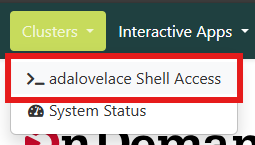
This will take you directly to the shell in your user account.
Windows Users
If you wish to connect to the HPC system using only a command-line interface, you will be required to use SSH (using port 22). A free windows based software package that provides SSH connection is “PuTTy”, which can be freely downloaded at http://www.chiark.greenend.org.uk/~sgtatham/putty/download.html. Please note that if you are using a CQ University’s Windows Computer, you can install all of the required HPC software (we recommend Putty and notepad++ ) by going to Start Menu -> CQUni -> Company Portal, and searching for the software there.
Then simply connect to the host ada.cqu.edu.au and use your CQUniversity Username and Password to gain access.

Linux Users
If you wish to connect to the HPC system using only a command-line interface using SSH, simply start a terminal session and issue the following command ssh [Your CQUniversity username]@ada.cqu.edu.au, in which you will then be prompted the enter your password, which will be your CQUniversity password.
Mac Users
If you wish to connect to the HPC system using only a command-line interface using SSH, simply start a terminal session and issue the following command ssh [Your CQUniversity username]@ada.cqu.edu.au, in which you will then be prompted the enter your password, which will be your CQUniversity password.